
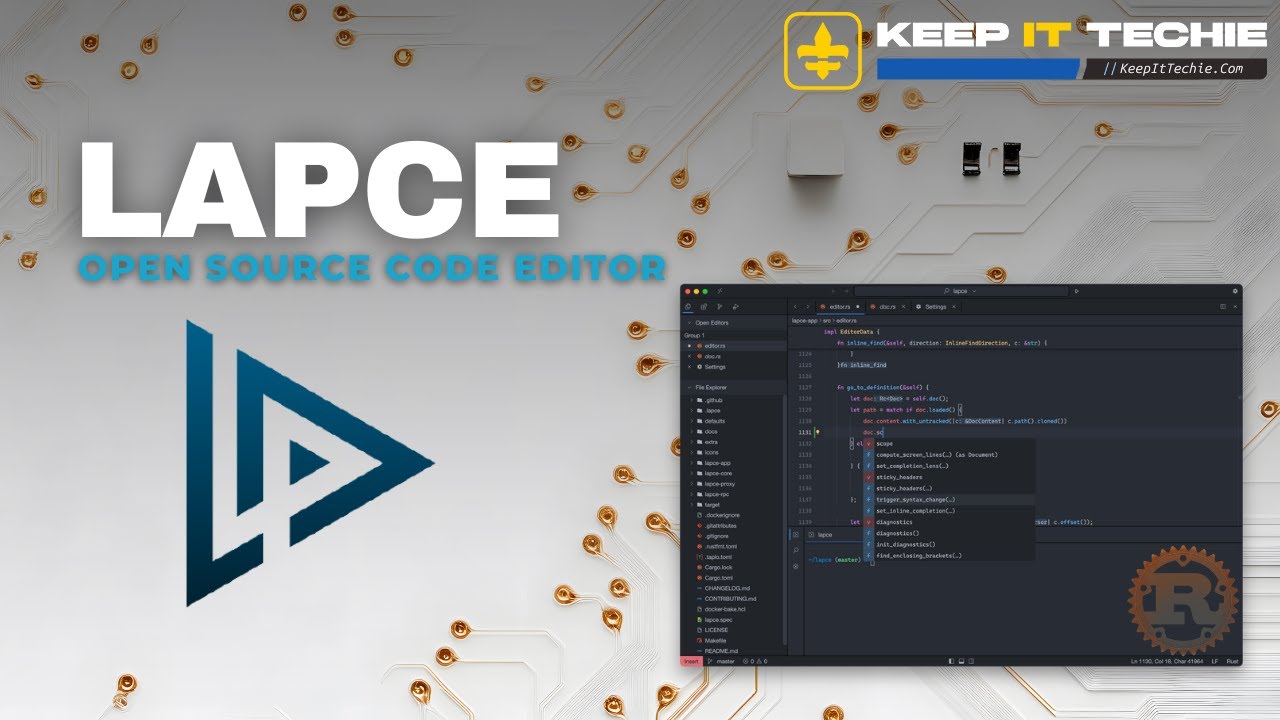
Meet Lapce: A Fast, Lightweight Open Source Editor for Linux
Sometimes a tool shows up at exactly the right time.
If you have been on Linux for a while, you probably remember the space Atom used to occupy. It was approachable, modern, and felt like a nice middle ground for people who wanted something more polished than a barebones editor without jumping straight into a heavyweight IDE. Lapce gives off that kind of energy, but with a much stronger focus on performance and efficiency.
That is the big hook here. Lapce is presented as a fast, lightweight, modern, open source code editor that runs well on Linux, even inside a virtual machine. For a lot of us, that matters more than flashy marketing ever will. If you are testing in VMs, spinning up lab environments, or just trying to keep your desktop responsive, tools that respect system resources stand out quickly.
Why Lapce stands out
The main selling point is speed.
Lapce is described as Rust-powered, and the video frames it as a future-proof kind of editor for people who liked the idea of Atom but want something that feels more current and more performance-minded. That does not automatically mean it replaces every editor in every workflow, but it absolutely puts Lapce in the conversation if your priorities are responsiveness, clean design, and low overhead.
For Linux users especially, lightweight matters. There are plenty of excellent development tools out there, but not all of them feel great in constrained environments. If an editor can stay snappy in an Arch Linux VM, that says something useful in the real world.
That is also why Lapce feels relevant beyond just "developer" use. If you are a homelab tinkerer, someone writing scripts, editing config files, hopping between languages, or managing small projects on Linux systems, a fast editor can make the whole experience smoother.
A modern UI without feeling bloated
One of the focus points in the walkthrough is Lapce's user interface.
The appeal here is not just that it looks modern. It is that the UI appears to balance polish with practicality. That can be harder to find than it sounds. Some editors are minimal to the point of friction. Others throw so much at you that they feel heavy before you even start working.
Lapce seems to land in a nice spot where the interface is clean, usable, and designed for actual development work. The video also highlights first launch behavior and a UI tour, which suggests there is enough structure there to make a good first impression without requiring a bunch of setup before you can be productive.
That matters a lot when trying a new editor. If the first launch feels clumsy, most people move on. If it feels intuitive and responsive, they keep digging.
Tree-sitter highlighting is part of the appeal
Another feature called out directly is Tree-sitter highlighting.
That is one of those details that may not sound exciting if you are just glancing at a feature list, but in practice it can make the editing experience feel much better. Good syntax highlighting helps with readability, especially when you move across different languages and file types.
In the workflow shown, Lapce is used around Bash, Python, YAML, Rust, and Go. That is a pretty practical mix for Linux users and self-hosters. It covers scripting, automation, config work, and compiled languages all in one editor flow.
When an editor handles that kind of mix well, it becomes much easier to treat it as your everyday tool instead of a niche backup option.
Integrated terminal keeps the workflow tight
One feature I always appreciate in a Linux editor is an integrated terminal, and Lapce includes that in the experience highlighted here.
This is bigger than convenience. For scripting, testing quick changes, jumping into a project directory, or checking output without constantly bouncing between windows, an integrated terminal can keep your momentum up. Especially in Linux, so much of the real workflow still lives in the shell.
That is why Lapce seems like a good fit for practical work instead of just demo-friendly work. It is not only about opening files and making edits. It is about staying in one place while you move through the edit-test-adjust cycle.
If you spend your time editing shell scripts, Python helpers, YAML files, or little infrastructure-related projects, this kind of setup can feel very natural.
Installing Lapce on Arch Linux
The video includes installation and setup on an Arch Linux VM, which is a useful angle.
There are two important things to take from that. First, the editor is being shown in a Linux-first context, not as an afterthought. Second, the fact that it is demonstrated inside a virtual machine reinforces the performance angle. If a tool feels good there, it has a strong chance of feeling even better on bare metal.
Since the walkthrough specifically covers installing Lapce on Arch Linux, that is a good sign for users who like to test software in isolated environments before deciding whether it belongs in their everyday setup.
I want to be careful here and stay grounded, because the details of the install command are not provided in the available material. So the key point is not the exact package method. The important part is that the setup process is part of the workflow shown, and it is tied directly to an Arch Linux VM environment.
Settings, themes, and command palette
After installation and first launch, the walkthrough moves into settings, themes, and the command palette.
That tells me Lapce is not just trying to be fast. It is also trying to be usable as a daily driver. Settings and theme support matter because people work best when an editor fits their eyes and habits. The command palette matters because once you get used to that style of navigation, it can dramatically speed up your workflow.
A command palette is one of those features that tends to separate modern editors from simpler text editors. It gives you a centralized way to access functions quickly without digging through menus. If you are coming from editors that already have this pattern, seeing it in Lapce makes the transition easier.
And if you are new to that style of workflow, it can become one of the first features you really start depending on.
Real-world language mix matters more than synthetic demos
One thing I like about the video structure is that it does not stop at the website overview or a polished UI tour. It moves into a demo project that touches Bash, Python, YAML, Rust, and Go.
That matters because a lot of editor demos stay too clean. They show one language, one perfect file, and just enough movement to make the UI look good. That is not how most of us actually work.
A more realistic mix of languages says a lot more about whether an editor fits Linux workflows. Bash and YAML alone cover a huge amount of day-to-day administration, automation, and homelab work. Add Python for scripting, then Rust and Go for broader development use, and you have a much better picture of editor versatility.
If Lapce feels comfortable across that spread, it becomes appealing to more than just one niche of users.
LSP and why that matters
The wrap-up includes LSP overview and general motivation, which is another good sign.
Language Server Protocol support is a major part of what makes a modern editor useful beyond plain text editing. It is one of the things that helps bridge the gap between a simple editor and a more capable development environment.
The source material does not go deep into exact language server setup steps or feature-by-feature behavior, so I am not going to make claims that are not supported. But the fact that LSP is part of the discussion tells you Lapce is being positioned as a serious coding tool, not just a lightweight notepad with syntax colors.
For people who want speed without giving up modern development features, that is exactly the kind of balance worth paying attention to.
Who Lapce seems best suited for
Based on what is shown, Lapce looks especially interesting for a few groups.
First, Linux users who care about performance. If you are tired of editors that feel sluggish or overbuilt for the work you actually do, Lapce is worth a look.
Second, people working in mixed-language environments. If your day regularly includes shell scripts, YAML configs, and occasional work in Python, Rust, or Go, the workflow shown lines up well with that reality.
Third, VM users and homelab folks. Running well in a virtualized setup is a practical advantage, not just a benchmark talking point.
And finally, anyone still missing the spirit of Atom but wanting something that feels more current and performance-oriented.
One mistake to avoid
A big mistake would be expecting Lapce to prove everything from a feature checklist alone.
The strongest case made here is not about a giant list of capabilities. It is about how the editor feels in use: fast, lightweight, modern, and comfortable in a real Linux workflow. If you approach it only asking whether it mirrors every feature of some other editor you already use, you may miss the point.
The better way to evaluate Lapce is to try it in the kind of work shown here. Open a real project. Edit a shell script. Touch some YAML. Run commands in the integrated terminal. See how it behaves on your Linux system, especially if resources are limited.
That is where a tool like this earns its place.
Final thoughts
Lapce comes across as a genuinely interesting open source editor for Linux users who want speed without dropping into an overly stripped-down experience. The combination of a modern UI, Tree-sitter highlighting, integrated terminal, and practical multi-language workflow makes it stand out.
I also think the Linux angle is what gives this one extra credibility. Showing it on Arch Linux, inside a VM, and using it in a real scripting-oriented workflow says more than a slick homepage ever could.
If you have been looking for an editor that feels modern, respects your resources, and fits the way a lot of us actually work on Linux, Lapce looks like one you should put on your list.
Catch you in the next one.
~ KeepItTechie