
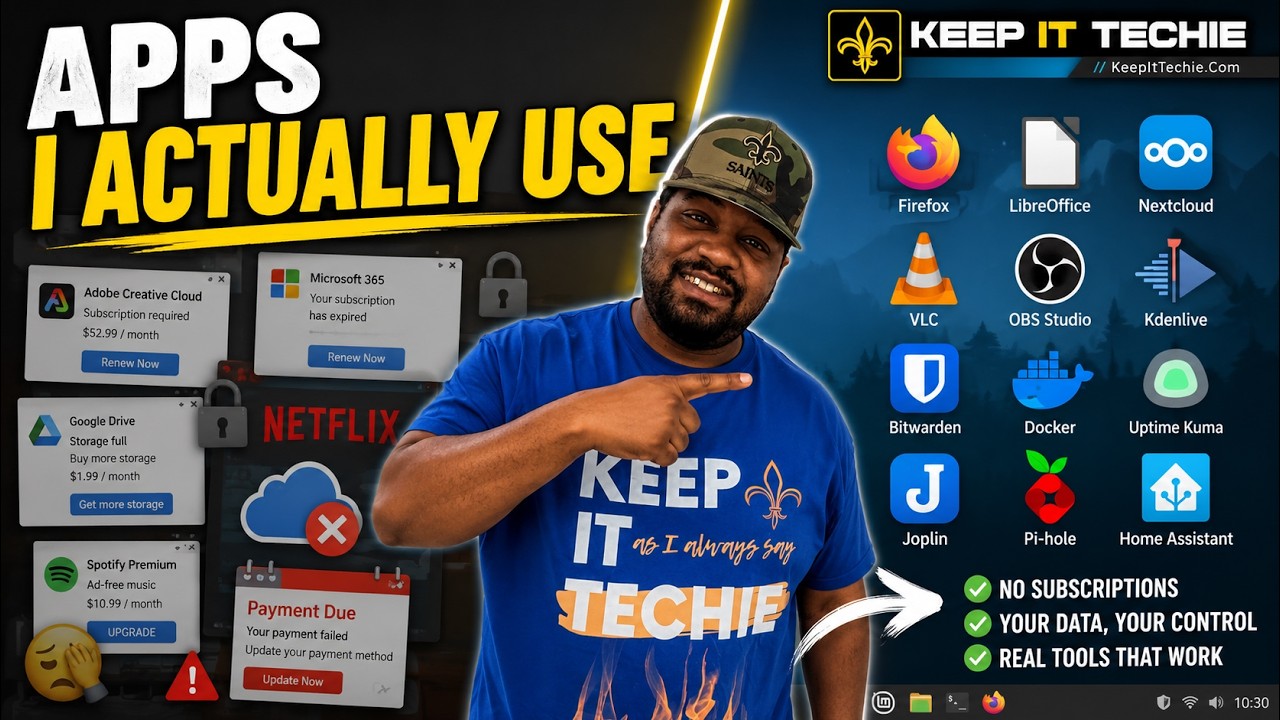
Why I Focus on Apps I Actually Use
Hey, Josh here from KeepItTechie. I get asked a lot which open source apps are not just interesting, but actually good enough to use every week. The list in my video and below is pragmatic. The goal is not to replace everything overnight. The goal is to start building a workflow that gives you more control, more privacy, and fewer dependencies on closed platforms and subscriptions.
This article walks through the apps I use regularly, organized by category, and then gives a practical adoption plan and a few mistakes to avoid. If you want to move toward more open software but keep your sanity, this is the roadmap I used.
Browsing, Email, and Office
-
Firefox: My daily browser for regular web browsing. It is the go-to open source choice for general browsing needs.
-
Thunderbird: My pick for a desktop email client when I want local control over mail. It works well for traditional IMAP/POP setups and keeps mail stored locally if you want.
-
LibreOffice: The office suite I use for document editing when I need an offline, fully open solution for word processing, spreadsheets, and presentations.
These three are easy swaps if you are moving away from proprietary, cloud-tied alternatives. They also fit well on Linux and other desktops.
Notes and Knowledge Management
- Joplin: My go-to for notes and a local-first notebook. Joplin is flexible and supports syncing if you want it, but you can also keep things local for privacy.
Notes tip: think about whether you want sync enabled. If you sync to a self-hosted server, make sure backups are in place for the note store.
File Sync, Backups, and Photos
-
Nextcloud: My self-hosted cloud for files, calendar, contacts, and basic collaboration. It is an integrated solution if you want one place for many services.
-
Syncthing: A pure peer-to-peer file sync solution. Great for keeping folders synchronized across devices without a central server.
-
Immich: A newer open source option I use for photo and video backup when I want a self-hosted solution that targets media specifically.
Backup vs sync gotcha: Don’t confuse sync tools with backups. Syncthing is great for mirroring files across devices, but if you accidentally delete a file on one device, that deletion will usually propagate. Always keep a separate backup copy or versioned backup if you want true protection against accidental deletion or corruption.
Media, Recording, and Editing
-
VLC: My everyday media player for video and audio files.
-
OBS Studio: The tool I use to record or stream desktop video and webcam content.
-
Kdenlive: My choice for editing video when I need a local, open tool.
These are solid options if you do any media consumption, screen recording, or editing without relying on proprietary suites.
Passwords and Secrets
-
Bitwarden: I recommend Bitwarden for a modern password manager that can be self-hosted or used via their hosted service.
-
KeePassXC: A local-first password manager that stores encrypted databases on your device or a storage location you control.
Password manager gotcha: If you self-host a password server, make sure you have a solid recovery plan for the vault. For local vaults like KeePassXC, ensure the encrypted database is included in your backups.
Homelab and Docker Ecosystem
-
Docker: The backbone of how I run many services on my homelab. Containers let you test and run apps in isolation.
-
Portainer: A lightweight way to manage Docker containers via a UI if you do not want to stick only to command line.
-
Uptime Kuma: Simple uptime monitoring for services you host.
-
Pi-hole: Network-level ad and tracker blocking that I use on my home network.
-
Home Assistant: My home automation hub when I want integrations with smart devices but still control the data locally.
These tools are the core of many homelab setups. If you are new to Docker or containers, spend some time with learning resources and try small projects first.
AI, Models, and Local Inference
- Open WebUI and Ollama: I experiment with local model UIs and runtimes for private, offline AI usage. Running models locally is a growing space in open source and homelab communities.
Practical note: Local AI tooling can be fun to experiment with, but it often requires GPU resources or careful tuning if you want good performance. Start with small models and realistic expectations.
How I Evaluate Tools - Quick Checklist
When I look at an open source app, I ask:
- Does it solve a real problem for me right now?
- Is it actively maintained and reasonably secure?
- Can I operate it with the resources I have (time, hardware, network)?
- Can I migrate back if it does not work out?
If the answers are mostly yes, I try it. If it becomes part of my weekly routine, it earns a permanent spot.
A Realistic Adoption Plan
- Pick one area to replace first - browser or notes are low-friction wins. Don’t try to switch everything at once.
- Self-host one simple service - a Nextcloud instance or Syncthing between two devices. Learn the admin side on a non-critical server.
- Add password management - choose Bitwarden self-hosted or KeePassXC with a safe backup strategy.
- Containerize services with Docker and use Portainer if you prefer a UI. Keep one service per container and document your setup.
- Add monitoring and backups - use Uptime Kuma for service checks and establish offsite or versioned backups.
- Iterate slowly. Replace more services only after you are comfortable with the maintenance overhead.
Security and Sources
Understand where your software comes from. Community packages, container images, and repositories differ in how they are maintained. Use official sources when possible and verify checksums or signatures if you are deploying critical services. Also, avoid exposing admin interfaces publicly without proper authentication and network controls.
Common Mistakes to Avoid
-
Treating sync as backup. As mentioned earlier, sync propagates deletions and corruption. Use versioned or offsite backups.
-
Exposing management consoles to the internet without hardening. Many homelab admins make the mistake of opening UIs to the wider internet. Use VPNs, strong auth, and firewalls instead.
-
Trying to replace everything at once. You will burn out. Swap one piece, live with it, and learn before changing the rest.
Final Thoughts
Open source gives you options and control, but it also introduces responsibilities. The payoff is greater privacy, fewer vendor lock-ins, and a more flexible setup that you control. Start small, pick high-impact replacements that fit your daily routines, and build from there.
If you want to dive deeper, the video goes through each of these apps and why they made the list. Thanks for reading, and I will see you in the next one. - Josh
~ KeepItTechie